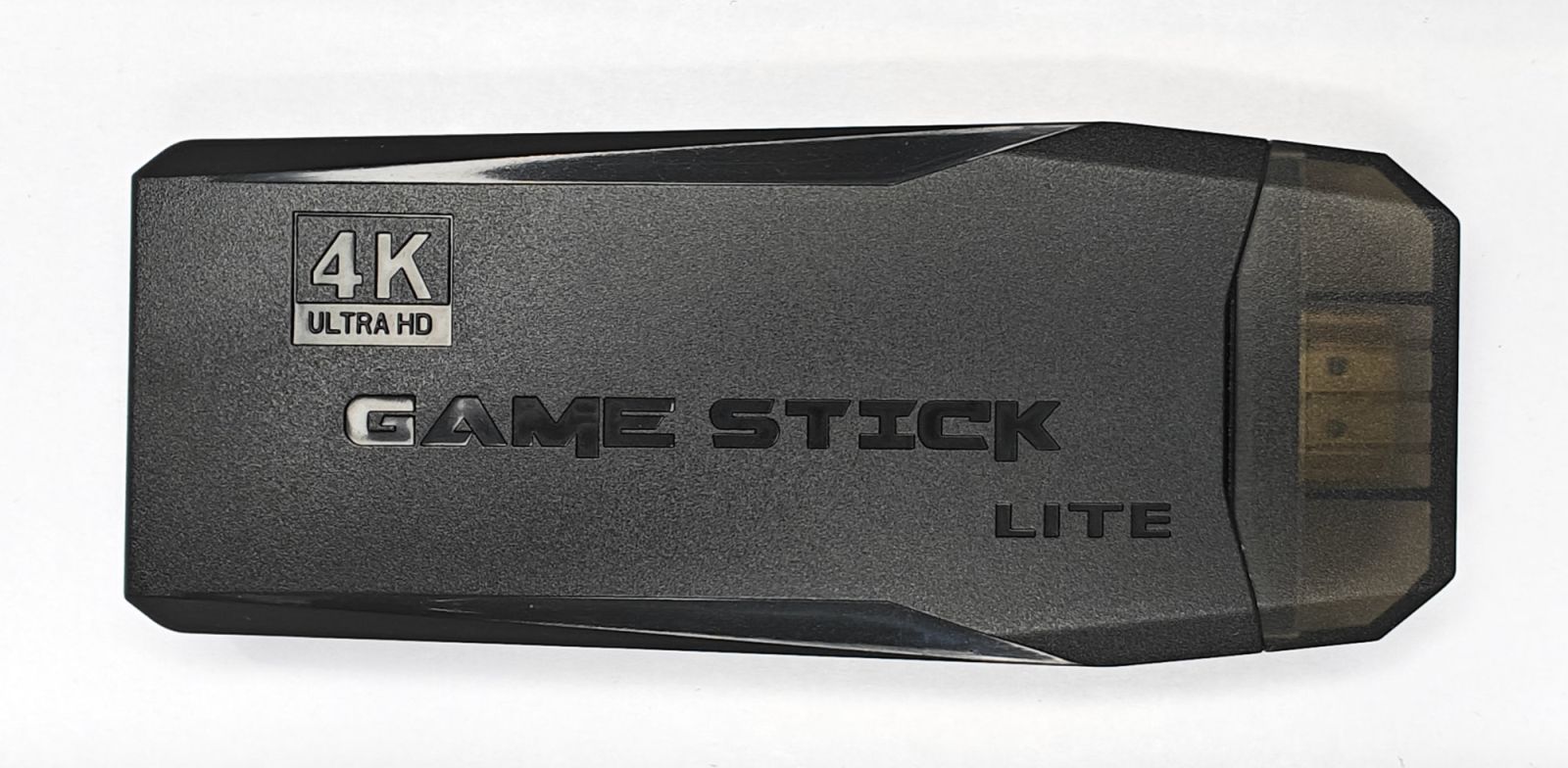
The Game Stick Lite 4K is a cheap (around 20€) retro gaming HDMI dongle based on the HiSilicon Hi3798MV100 SoC. It comes with a microSD (TF) card containing the bootloader, OS, emulators and thousands of preloaded games. The card has no partition table: partitions exist at fixed byte offsets, which means it is not normally readable on a PC.
Most guides online suggest you need to buy/provide your own micro-USB data cable to access the download partition, since the included USB cable is power-only. However, you can skip that entirely by mounting the microSD card directly on Linux using the correct byte offsets.
This post documents the process of identifying the hidden partitions and adding games from a Linux system.
Hardware identification
Insert the microSD card (via an SD adapter) and check what the kernel sees:
1
2
| NAME FSTYPE FSVER LABEL UUID FSAVAIL FSUSE% MOUNTPOINTS
mmcblk0
|
No filesystem detected. Inspecting the raw bytes reveals the firmware header:
1
| sudo hexdump -C /dev/mmcblk0 | head -10
|
1
2
3
4
5
6
7
8
9
10
11
12
| 00000000 19 08 00 ea 14 f0 9f e5 14 f0 9f e5 14 f0 9f e5 |................|
00000010 14 f0 9f e5 14 f0 9f e5 14 f0 9f e5 14 f0 9f e5 |................|
00000020 e0 4b c0 00 60 4c c0 00 e0 4c c0 00 60 4d c0 00 |.K..`L...L..`M..|
00000030 e0 4d c0 00 60 4e c0 00 e0 4e c0 00 0d 59 5a 43 |.M..`N...N...YZC|
00000040 76 31 2e 31 2e 30 00 00 00 00 00 00 00 00 00 00 |v1.1.0..........|
...
00000080 32 30 32 34 2f 31 2f 31 36 20 20 30 3a 34 38 3a |2024/1/16 0:48:|
00000090 35 33 00 00 68 69 33 37 39 38 6d 64 6d 6f 31 67 |53..hi3798mdmo1g|
000000a0 5f 68 69 33 37 39 38 6d 76 31 30 30 5f 64 64 72 |_hi3798mv100_ddr|
000000b0 33 5f 31 67 62 79 74 65 5f 31 36 62 69 74 78 31 |3_1gbyte_16bitx1|
000000c0 5f 34 6c 61 79 65 72 73 5f 65 6d 6d 63 2e 72 65 |_4layers_emmc.re|
000000d0 67 00 00 00 00 00 00 00 00 00 00 00 00 00 00 00 |g...............|
|
This identifies the firmware as YZC v1.1.0 for the Hi3798MV100 SoC, built on 2024/01/16.
Finding the partitions
Since there is no partition table, we need to locate the filesystems manually. First, search for known directory names to confirm games exist on the card:
1
| sudo grep -abo 'lost+found\|retroarch\|/roms/' /dev/mmcblk0 | head -10
|
1
2
3
4
5
| 13113376:lost+found
13197344:lost+found
30219892:/roms/
30220411:/roms/
...
|
The lost+found entries indicate an ext4 filesystem. To find its exact start offset, scan for the ext4 superblock magic bytes (53 ef) at common offsets:
1
2
3
4
| sudo bash -c 'for off in 12582912 13107200 13631488; do
echo -n "offset $off + 1080: "
dd if=/dev/mmcblk0 bs=1 skip=$((off + 1080)) count=2 2>/dev/null | od -A n -t x1
done'
|
1
2
3
| offset 12582912 + 1080: 53 ef
offset 13107200 + 1080: 00 00
offset 13631488 + 1080: 1b 14
|
The ext4 superblock magic 53 ef is found at offset 12582912 (0xC00000, 12 MB).
Partition layout
According to the 12bit Museum wiki, the Game Stick Lite M8 microSD card layout is:
| Offset | Size | Filesystem | Contents |
|---|
0x000000 | 2 MB | Raw | Bootloader |
0x200000 | 10 MB | Raw | Linux kernel + DTB |
0xC00000 | 300 MB | ext3 | rootfs (binaries and resources) |
0x13800000 | 64 MB | ext3 | Game list database |
0x17800000 | 512 MB | swap | Swap |
0x37800000 | 1 GB | FAT | Download section (user-accessible) |
0x77800000 | varies | FAT | Preloaded games |
Mounting the rootfs
1
2
| sudo mount -o ro,offset=12582912 /dev/mmcblk0 /mnt
ls /mnt
|
1
| bin cmd data db font lib lost+found modules settings shader ui_keypad_test ui_m8 ui_m8_retormax ui_m15 ui_x2 version_m15 version_m8 version_x2 wav xml_m15 xml_m8 xml_x2
|
1
2
| SEGAM-M8
V8.0 2025-08-29
|
Mounting the download partition
The download partition at 0x37800000 is where you can add your own games:
1
2
| sudo mount -o offset=0x37800000,uid=$(id -u),gid=$(id -g) /dev/mmcblk0 /mnt
ls -lh /mnt
|
1
2
3
| 135 MB Superior Defender Gundam.img
661 MB tekken3.img
121 MB Tomand Jerry-House Trap.img
|
1
2
| Filesystem Size Used Avail Use% Mounted on
/dev/loop0 1022M 918M 105M 90% /var/mnt
|
Adding games
Copy ROM files directly into the mounted partition:
Unmount and sync before removing the card:
1
| sudo umount /mnt && sync
|
Re-insert the microSD card into the game stick. The new games should appear in the Download section of the menu.
Notes
References